अध्याय 5 | Chapter 5
Software और Operating System
Software & Operating System
Software वो instructions हैं जो hardware को बताती हैं क्या करना है। इस अध्याय में Windows का पूरा practical ज्ञान।
1.1 · Software के 6 प्रकार | 6 Types
Software क्या होता है? | What is Software?
Software instructions का एक set होता है जो hardware को बताता है कि क्या करना है। Software को छू नहीं सकते — यह virtual होता है।
| Software के प्रकार | विवरण और उदाहरण |
|---|
| System Software | Computer चलाने के लिए ज़रूरी। Windows, Linux, macOS, Android, iOS |
| Application Software | User के काम के लिए। MS Word, Excel, Chrome, VLC, WhatsApp, Tally |
| Utility Software | Maintenance के लिए। Antivirus, WinRAR, Disk Cleanup |
| Freeware | बिना पैसे के। VLC, Chrome, 7-Zip, LibreOffice |
| Paid Software | खरीदना पड़ता है। MS Office, Adobe Photoshop, Tally ERP |
| Open Source | Source code public। Linux, VLC, Firefox |
1.2 · Hardware vs Software
Hardware vs Software — तुलना
Hardware
- Physical — छू सकते हैं
- Computer का 'शरीर'
- खराब → repair / replace
- उदाहरण: Keyboard, RAM, Monitor
Software
- Virtual — छू नहीं सकते
- Computer का 'दिमाग'
- खराब → reinstall / update
- उदाहरण: Windows, MS Word, Chrome
2.1 · OS क्या है? | Popular OS
Operating System क्या है?
OS एक special software है जो hardware और user के बीच bridge का काम करता है। OS के बिना computer एक blank machine है।
Windows
Microsoft · सबसे popular
macOS
Apple · user-friendly
Android
Smartphones · Google
2.2 · Windows के Versions
Windows OS के Versions
| Version | Year | Status |
|---|
| Windows 7 | 2009 | बहुत popular था — आज भी कुछ computers में |
| Windows 8 / 8.1 | 2012–13 | Touch interface, कम popular रहा |
| Windows 10 | 2015 | Widely Used अभी भी बहुत use — stable और fast |
| Windows 11 | 2021 | Latest नया look, better performance |
OS Tips
- OS को हमेशा update रखें — new updates में security fixes होती हैं
- Licensed Windows use करें — pirated OS में viruses का खतरा
- अपना version जानने के लिए: Win+R → winver → Enter
3.1 · Computer ON करना | Steps to Start
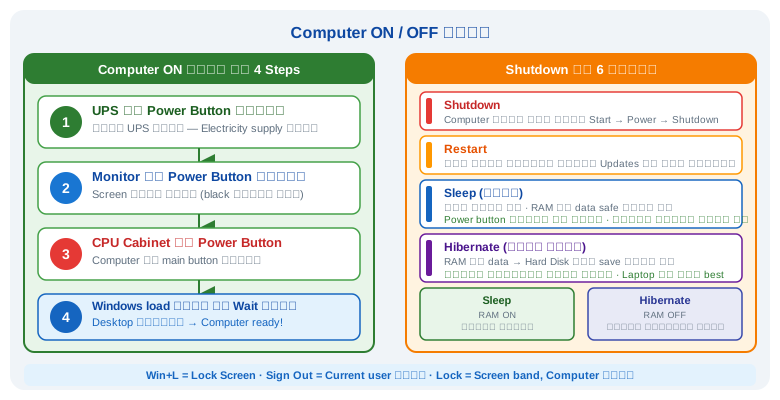
Computer ON करने के Steps
- UPS का power button दबाएं
- Monitor का power button दबाएं
- CPU cabinet का Power Button दबाएं
- Windows load होने तक wait करें — Desktop दिखेगी
3.2 · Shutdown के 6 तरीके | 6 Methods
Shutdown के 6 तरीके | Shutdown Methods
| Shutdown Method | क्या होता है |
|---|
| Shutdown | Computer पूरी तरह बंद। Start → Power → Shutdown। |
| Restart | बंद होकर दोबारा चालू। Updates के बाद ज़रूरी। |
| Sleep | रुक जाता है — RAM का data रहता है। Power button से वापस। |
| Hibernate | RAM का data Hard Disk पर save → बिजली नहीं लगती। |
| Lock | Screen lock। Win+L |
| Sign Out | Current user logout। |
4.1 · Desktop और Taskbar
Windows Basic — Desktop और Taskbar
| Part | क्या है और कैसे use करें |
|---|
| Desktop | Computer ON होने के बाद main screen। Right Click → Personalize। |
| Icons | Desktop पर छोटी pictures। Double Click से खुलती हैं। |
| Taskbar | Screen के नीचे की पट्टी। चालू programs और Start Menu। |
| Start Menu | बाएं Windows logo → सभी programs। |
| System Tray | Taskbar दाईं तरफ — Date, Time, WiFi, Volume, Antivirus। |
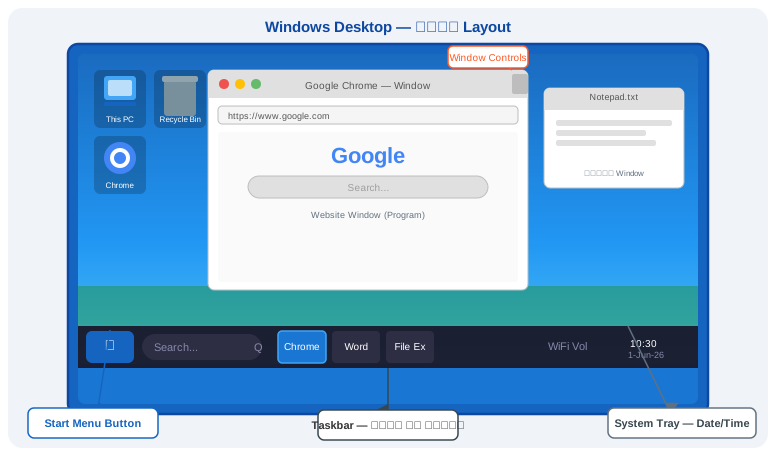
Windows Desktop का पूरा Layout — Start Button, Taskbar, Windows, System Tray
4.3 · Wallpaper कैसे बदलें
Wallpaper कैसे बदलें | How to Change Wallpaper
- Desktop पर खाली जगह Right Click करें
- 'Personalize' पर click करें
- 'Background' → 'Picture' → 'Browse' → photo चुनें → Apply
- 'Solid Color' — रंग चुनें। 'Slideshow' — folder चुनें।
Wallpaper Tip
- किसी photo पर Right Click → 'Set as Desktop Background' — सीधे wallpaper set हो जाएगी
4.4 · Icons को छोटा या बड़ा करें
Icons को छोटा या बड़ा कैसे करें | How to Resize Icons
- Desktop: Right Click → View → Large / Medium / Small Icons
- सबसे तेज़: Desktop पर Ctrl दबाए रखें + Scroll Wheel घुमाएं
- File Explorer: View menu → Extra Large / Large / Details
5.1 · File & Folder Operations
File और Folder Operations
| काम | Task | Steps / Shortcut |
|---|
| नया Folder बनाना | Right Click → New → Folder। Shortcut: Ctrl+Shift+N |
| Rename करना | File → Right Click → Rename। Shortcut: F2 |
| Copy करना | Ctrl+C → destination → Ctrl+V |
| Cut / Move करना | Ctrl+X → destination → Ctrl+V |
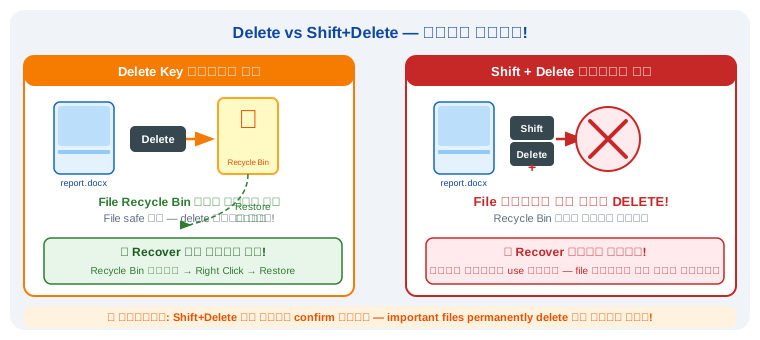
| Delete करना | Delete key → Recycle Bin में जाती है |
| Permanently Delete | Shift+Delete → सीधे permanent delete |
| Multiple files select | Ctrl+click (individual) या Shift+click (range) |
5.3 · File का Shortcut बनाना
File का Shortcut कैसे बनाएं
- तरीका 1: File → Right Click → 'Send to' → 'Desktop (create shortcut)'
- तरीका 2: File → Right Click → 'Create shortcut' (same folder में)
- तरीका 3: Alt दबाए रखें → File को Desktop पर drag करें
Shortcut Tips
- Shortcut पर तीर (↗) का निशान होता है — original file नहीं है
- Shortcut delete करने से original file safe रहती है
6.1 · File Extensions — फ़ाइल के प्रकार
File Extensions — फ़ाइल के प्रकार
File के नाम के अंत में dot (.) के बाद जो अक्षर होते हैं — वो Extension है। इससे पता चलता है file किस type की है।
| Extension | File Type | खुलता है | उदाहरण |
|---|
| .jpg / .jpeg | Photo | Photos, Paint | family.jpg |
| .png | Image (Transparent) | Photos | logo.png |
| .pdf | PDF Document | Adobe Reader, Browser | ebook.pdf |
| .doc / .docx | Word Document | MS Word | letter.docx |
| .xls / .xlsx | Excel Spreadsheet | MS Excel | data.xlsx |
| .ppt / .pptx | PowerPoint | MS PowerPoint | slides.pptx |
| .txt | Plain Text | Notepad | notes.txt |
| .mp3 | Audio | VLC, Windows Media Player | song.mp3 |
| .mp4 | Video | VLC | video.mp4 |
| .zip / .rar | Compressed File | WinRAR | files.zip |
| .exe | Program / Setup | Windows | setup.exe |
Extensions Tips
- Extension दिख नहीं रही? File Explorer → View → Show → File name extensions ON
- .exe files अनजान जगह से download न करें — virus हो सकता है
6.2 · WinRAR — Compress और Extract
WinRAR — Compress और Extract
- Compress — कई files को एक .zip/.rar में बदलना
- Extract — .zip/.rar खोलकर original files निकालना
- Password — compressed file पर password लगाना
- Compress: Files select → Right Click → 'Add to archive' → OK
- तेज़: Right Click → 'Add to [filename].zip'
- Extract: .zip/.rar → Right Click → 'Extract Here'
- Password: 'Add to archive' → 'Set password' → OK
WinRAR Tips
- .zip files Windows में बिना WinRAR के खुलती हैं — Right Click → 'Extract All'
- .rar files के लिए WinRAR ज़रूरी है
7.1 · Screenshot कैसे लें
Screenshot कैसे लें | Screenshots
| तरीका | Shortcut | क्या होता है |
|---|
| PrtSc | PrtSc | पूरी screen Clipboard में। Paint में Ctrl+V → Save। |
| Win + PrtSc | Win+PrtSc | Auto save → Pictures → Screenshots folder में। |
| Alt + PrtSc | Alt+PrtSc | सिर्फ active window। |
| Snipping Tool | Win+Shift+S | कोई भी हिस्सा select करो — सबसे useful! |
Screenshot Tips
- Win+PrtSc — automatically Pictures → Screenshots folder में save होती है
- Specific हिस्से के लिए: Win+Shift+S — सबसे useful!
7.2 · Date & Time Setting
Date & Time Setting | Date & Time
- Taskbar में Date/Time पर Right Click करें → 'Adjust date/time'
- 'Set time automatically' OFF करें → 'Change' दबाएं
- Date और Time set करें → Change
- Time Zone: 'India Standard Time (UTC+5:30)' select करें
7.3 · Win+R Run Box — 25+ Commands
Win+R — Run Box Commands
Win+R दबाने पर 'Run' window खुलती है। Command type करके directly program, settings, या tools खोलें।
| Command | क्या खुलेगा |
|---|
| सिस्टम जानकारी |
| winver | Windows version और Build number |
| msinfo32 | System Information — Processor, RAM, Motherboard |
| dxdiag | Graphics Card और Audio device की जानकारी |
| sysdm.cpl | System Properties — RAM, Processor देखना |
| Files और Programs खोलना |
| winword | MS Word खोलें |
| excel | MS Excel खोलें |
| powerpnt | MS PowerPoint खोलें |
| notepad | Notepad खोलें |
| calc | Calculator खोलें |
| mspaint | MS Paint खोलें |
| explorer | File Explorer खोलें |
| snippingtool | Snipping Tool — screenshot |
| charmap | Character Map — special characters |
| osk | On-Screen Keyboard |
| Settings |
| control | Control Panel खोलें |
| appwiz.cpl | Programs Uninstall करना |
| ncpa.cpl | Network — WiFi और LAN settings |
| timedate.cpl | Date & Time Settings |
| Maintenance |
| taskmgr | Task Manager — programs और RAM/CPU usage |
| cleanmgr | Disk Cleanup — storage खाली करना |
| cmd | Command Prompt |
| Browsers |
| chrome | Google Chrome खोलें |
| msedge | Microsoft Edge खोलें |
Run Box Tips
- Win+R सबसे तेज़ तरीका — Start Menu में ढूंढने की ज़रूरत नहीं
- taskmgr — computer slow हो तो खोलें, ज़्यादा RAM use करने वाले programs बंद करें
- cleanmgr — महीने में एक बार — temporary files delete, storage खाली
8.1 · Internet क्या है?
Internet क्या है? | What is the Internet?
Internet दुनिया भर के computers को जोड़ने वाला एक विशाल network है।
| Term | मतलब | Meaning |
|---|
| Browser | Internet पर websites खोलने का program। Chrome, Firefox, Edge। |
| Website | Internet पर address। google.com, youtube.com। |
| URL | पूरा address। जैसे https://www.google.com |
| HTTPS | Secure connection (lock icon)। HTTP = unsecured। |
| Search Engine | Information ढूंढना। Google, Bing। |
| WiFi | Wireless internet connection। |
| LAN | Cable से internet connection। |
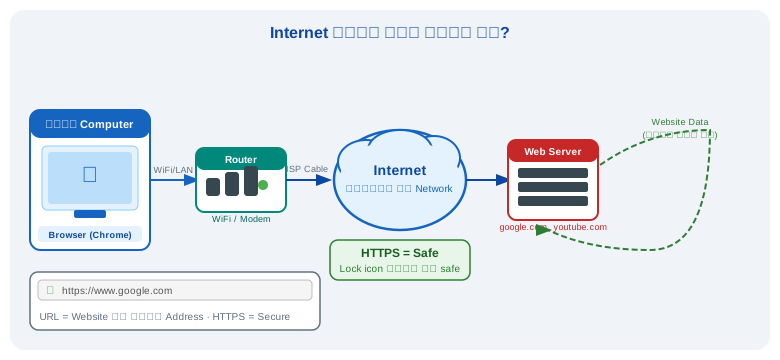
Internet कैसे काम करता है — आपका Computer → Router → Internet → Web Server → वापस आपके पास
Internet Tips
- HTTPS वाली websites safe हैं — HTTP पर personal information न दें
- Browser history clear: Ctrl+Shift+Delete
- Incognito Mode: Ctrl+Shift+N — history save नहीं होती
8.3 · Pen Drive Format & Safely Remove
Pen Drive Format और Safely Remove
Format करना:
- Pen Drive लगाएं → Win+E खोलें
- Pen Drive पर Right Click → 'Format'
- FAT32 (छोटी files) या NTFS (बड़ी files) → Start
- Warning → OK → Format हो जाएगी (सब data delete)
Safely Remove:
- System Tray में Pen Drive icon → 'Eject [Drive]' → message आएगी → तब निकालें
- बिना safely remove के निकालने से files corrupt हो सकती हैं
8.4 · Virus और Antivirus
Virus और Antivirus — Computer की सुरक्षा
Virus के लक्षण
Computer अचानक slow हो जाना
अजीब popup ads आना
Files अपने आप delete होना
Browser अजीब websites खोलना
Computer का अपने आप restart होना
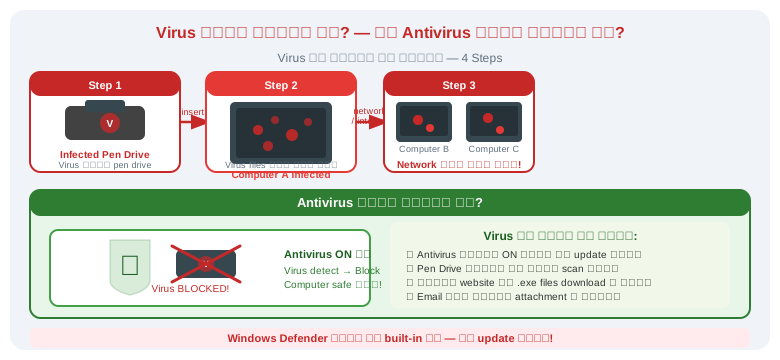
Virus कैसे pen drive से फैलता है और Antivirus कैसे बचाता है
| Virus का प्रकार | क्या करता है |
|---|
| Virus | Files corrupt करता है और खुद copy होकर फैलता है |
| Trojan Horse | Normal software जैसा दिखता है — install पर control चुरा लेता है |
| Spyware | Passwords और bank details चुराता है |
| Ransomware | Files lock करता है — unlock के लिए पैसे माँगता है |
| Adware | बार-बार popup ads दिखाता है |
| Worm | Network से एक computer से दूसरे में फैलता है |
Popular Antivirus
Windows Defender
Windows 10/11 में built-in, free और reliable
Avast Free
India में popular, free
Quick Heal
India की company, Hindi support
Kaspersky
दुनिया के best में से एक
Virus से बचने के नियम
- Antivirus हमेशा ON रखें और update करते रहें
- अनजान website से .exe files download न करें
- Pen Drive लगाने से पहले scan करें
- Email में अनजान attachment न खोलें
Antivirus Tips
- Windows Defender पहले से है — extra antivirus की ज़रूरत नहीं, बस update रखें
- एक computer पर दो antivirus न लगाएं — conflict होता है, computer slow होता है