Software और Operating System
Software वो instructions हैं जो hardware को बताती हैं क्या करना है। इस अध्याय में Windows का पूरा practical ज्ञान — Files, Folders, Shortcuts, Virus Protection और बहुत कुछ।
Software क्या होता है?
Software instructions का एक set होता है जो hardware को बताता है कि क्या करना है। Software को छू नहीं सकते — यह virtual होता है।
| Software के प्रकार | विवरण और उदाहरण |
|---|---|
| System Software | Computer चलाने के लिए ज़रूरी। Windows, Linux, macOS, Android, iOS |
| Application Software | User के काम के लिए। MS Word, Excel, Chrome, VLC, WhatsApp, Tally |
| Utility Software | Maintenance के लिए। Antivirus, WinRAR, Disk Cleanup |
| Freeware | बिना पैसे के। VLC, Chrome, 7-Zip, LibreOffice |
| Paid Software | खरीदना पड़ता है। MS Office, Adobe Photoshop, Tally ERP |
| Open Source | Source code public। Linux, VLC, Firefox |
Hardware vs Software — तुलना
Hardware और Software दोनों computer के ज़रूरी हिस्से हैं, लेकिन दोनों की प्रकृति बिल्कुल अलग है। Hardware को छू सकते हैं और Software को सिर्फ screen पर देख सकते हैं। नीचे दोनों का सीधा फर्क comparison में देखें।
- Physical — छू सकते हैं
- Computer का 'शरीर'
- खराब → repair / replace
- उदाहरण: Keyboard, RAM, Monitor
- Virtual — छू नहीं सकते
- Computer का 'दिमाग'
- खराब → reinstall / update
- उदाहरण: Windows, MS Word, Chrome
Software Install और Uninstall — Step by Step
कोई भी software use करने से पहले उसे computer में install करना पड़ता है। जब ज़रूरत न हो तो uninstall करें — storage और speed दोनों बचेगी।
- Setup में "Custom Install" चुनें — extra/unwanted software (bloatware) का tick हटाएं
- Cracked/Pirated software install न करें — virus और legal problem दोनों का खतरा
- Uninstall के बाद cleanmgr (Disk Cleanup) ज़रूर चलाएं — leftover files हटती हैं
Operating System क्या है?
OS एक special software है जो hardware और user के बीच bridge का काम करता है। OS के बिना computer एक blank machine है।
Windows OS के Versions
Microsoft समय-समय पर Windows के नए versions निकालता है, और हर नए version में पुराने से बेहतर features और speed मिलती है। इनमें से कुछ अभी भी बहुत use होते हैं तो कुछ पुराने पड़ चुके हैं। नीचे table में सभी popular Windows versions और उनकी वर्तमान स्थिति देखें।
| Version | Year | Status |
|---|---|---|
| Windows 7 | 2009 | बहुत popular था — आज भी कुछ computers में |
| Windows 8 / 8.1 | 2012–13 | Touch interface, कम popular रहा |
| Windows 10 | 2015 | Widely Used अभी भी बहुत use — stable और fast |
| Windows 11 | 2021 | Latest नया look, better performance |
- OS को हमेशा update रखें — new updates में security fixes होती हैं
- Licensed Windows use करें — pirated OS में viruses का खतरा
- अपना version जानने के लिए: Win+R → winver → Enter
Windows 11 vs Windows 10 — क्या बदला?
Windows 11 October 2021 में आया। Windows 10 से काफी नया look और कुछ नए features आए। लेकिन दोनों काम एक जैसे ही करते हैं — बस interface थोड़ा अलग है।
| Feature | Windows 10 | Windows 11 |
|---|---|---|
| Start Menu | बाईं तरफ — traditional | Center में — Android जैसा |
| Taskbar | Left align — customizable | Center aligned — कम options |
| Design | Square corners | Rounded corners — modern look |
| Widgets | नहीं था | Win+W — News, Weather, Stocks |
| Snap Layouts | Basic window snap | Win+Z — 6 layout options |
| Teams Integration | Separate install | Taskbar में built-in |
| Android Apps | नहीं चलते | Amazon App Store से (limited) |
| Gaming | DirectX 12 | DirectX 12 Ultimate + Auto HDR |
| Support | October 2025 तक | 2031 तक supported |
- Processor: 1 GHz+ dual-core, 64-bit — 8th Gen Intel या AMD Ryzen 2000+
- RAM: कम से कम 4GB (8GB recommended)
- Storage: 64GB free space
- TPM: Version 2.0 — security chip (ज़्यादातर 2017+ computers में है)
- Display: 720p, 9 inch या बड़ा
- नया computer खरीद रहे हैं? → Windows 11 लें — future-proof
- पुराना computer (pre-2017)? → Windows 10 रखें — compatible है
- Cyber Cafe के लिए: Windows 10 या 11 दोनों ठीक हैं
- अपना version check करें: Win+R → winver
- Windows 10 का support October 2025 में बंद होगा
Computer ON करने के Steps
Computer को सही तरीके से ON करना भी एक ज़रूरी skill है — गलत क्रम में buttons दबाने से कभी-कभी दिक्कत आ सकती है। नीचे दिए गए 4 steps को क्रम से follow करें।
- UPS का power button दबाएं
- Monitor का power button दबाएं
- CPU cabinet का Power Button दबाएं
- Windows load होने तक wait करें — Desktop दिखेगी
Shutdown के 6 तरीके
Computer को बंद करने का सिर्फ एक तरीका नहीं है — काम के हिसाब से अलग-अलग तरीके useful होते हैं, जैसे थोड़ी देर के लिए रोकना या पूरी तरह बंद करना। नीचे table में Shutdown के सभी 6 तरीके और उनका मतलब समझें।
| Shutdown Method | क्या होता है |
|---|---|
| Shutdown | Computer पूरी तरह बंद। Start → Power → Shutdown। |
| Restart | बंद होकर दोबारा चालू। Updates के बाद ज़रूरी। |
| Sleep | रुक जाता है — RAM का data रहता है। Power button से वापस। |
| Hibernate | RAM का data Hard Disk पर save → बिजली नहीं लगती। |
| Lock | Screen lock। Win+L |
| Sign Out | Current user logout। |
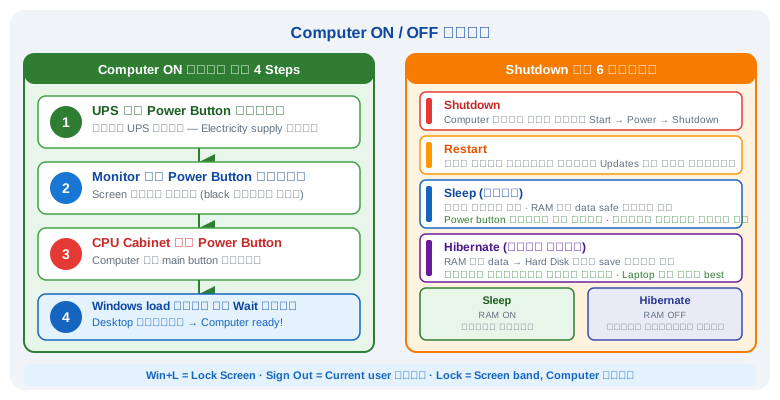
Computer ON के 4 Steps · Shutdown के 6 तरीके · Sleep vs Hibernate का फर्क
Windows Basic — Desktop और Taskbar
Computer ON होने के बाद जो पहली screen दिखती है उसे Desktop कहते हैं, और उसके अलग-अलग हिस्सों को पहचानना एक beginner के लिए सबसे पहला कदम है। नीचे table में Desktop के सभी main parts और उनका काम बताया गया है।
| Part | क्या है और कैसे use करें |
|---|---|
| Desktop | Computer ON होने के बाद main screen। Right Click → Personalize। |
| Icons | Desktop पर छोटी pictures। Double Click से खुलती हैं। |
| Taskbar | Screen के नीचे की पट्टी। चालू programs और Start Menu। |
| Start Menu | बाएं Windows logo → सभी programs। |
| System Tray | Taskbar दाईं तरफ — Date, Time, WiFi, Volume, Antivirus। |
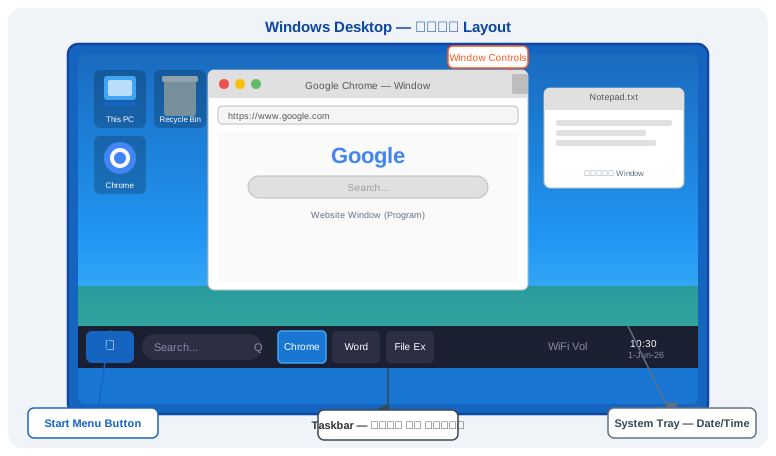
Windows Desktop का पूरा Layout — Start Button, Taskbar, Windows, System Tray
Window Controls — Minimize, Maximize, Close
हर खुली हुई window को छोटा, बड़ा या बंद करने के लिए ऊपर right कोने में कुछ buttons होते हैं। इन्हें सही तरीके से use करना आना ज़रूरी है ताकि एक साथ कई programs आसानी से handle हो सकें। नीचे table में सभी controls और उनके shortcuts देखें।
| Button / Feature | क्या होता है |
|---|---|
| Minimize | Taskbar में छुपाता है। Program बंद नहीं होता। Shortcut: Win+↓ |
| Maximize | पूरी screen पर फैलाता है। दोबारा click → Restore। Shortcut: Win+↑ |
| Close | Program पूरी तरह बंद। Unsaved files पहले save करें। Shortcut: Alt+F4 |
| Search Bar | Win+S = Taskbar Search। File Explorer Search = folder के अंदर। |
| Scroll Bar | Vertical (दाईं) = ऊपर-नीचे। Horizontal (नीचे) = बाएं-दाएं। |
Wallpaper कैसे बदलें
Desktop की background में दिखने वाली image को Wallpaper कहते हैं, जिसे कोई भी अपनी पसंद के हिसाब से बदल सकता है। नीचे दिए गए steps follow करके अपनी मनपसंद photo या रंग wallpaper के रूप में लगाएं।
- Desktop पर खाली जगह Right Click करें
- 'Personalize' पर click करें
- 'Background' → 'Picture' → 'Browse' → photo चुनें → Apply
- 'Solid Color' — रंग चुनें। 'Slideshow' — folder चुनें।
- किसी photo पर Right Click → 'Set as Desktop Background' — सीधे wallpaper set हो जाएगी
Icons को Resize कैसे करें
Desktop या File Explorer में icons बहुत छोटे या बहुत बड़े दिख रहे हों तो उन्हें आसानी से resize किया जा सकता है। नीचे इसके अलग-अलग तरीके दिए गए हैं।
- Desktop: Right Click → View → Large / Medium / Small Icons
- सबसे तेज़: Desktop पर Ctrl दबाए रखें + Scroll Wheel घुमाएं
- File Explorer: View menu → Extra Large / Large / Details
Taskbar और Start Menu — अपने हिसाब से बनाएं
Windows का Taskbar और Start Menu अपनी ज़रूरत के हिसाब से customize किया जा सकता है — programs pin करना, icons arrange करना, size बदलना।
| Customization | Steps |
|---|---|
| Program को Taskbar पर Pin करना | Program पर Right Click → "Pin to taskbar" — हर बार आसानी से खुलेगा |
| Taskbar से हटाना (Unpin) | Taskbar पर icon → Right Click → "Unpin from taskbar" |
| Start Menu में Pin करना | Program → Right Click → "Pin to Start" — Start Menu में tile बनती है |
| Taskbar की Position बदलना | Right Click (Taskbar) → Taskbar Settings → Taskbar behaviors → Position |
| System Tray icons manage करना | Taskbar Settings → System tray icons → ON/OFF करें |
| Taskbar Auto-hide करना | Taskbar Settings → Automatically hide the taskbar → ON |
| Clock, Volume, Network दिखाना | Taskbar Settings → System tray icons → सब ON रखें |
- Cyber Cafe के लिए: Chrome, MS Word, File Explorer, Notepad — ये 4 apps taskbar पर pin रखें
- Win+D = सारी windows minimize, Desktop दिखाए — बहुत काम आता है
- Taskbar icons too crowded? Right Click → Taskbar Settings → "Combine taskbar buttons" → Always
File और Folder Operations
Computer पर काम करते समय Files और Folders को बार-बार बनाना, copy करना, move करना या delete करना पड़ता है। ये सभी basic operations अच्छे से आने चाहिए ताकि data आसानी से manage हो सके। नीचे table में सभी ज़रूरी operations और उनके shortcuts दिए गए हैं।
| काम | Task | Steps / Shortcut |
|---|---|
| नया Folder बनाना | Right Click → New → Folder। Shortcut: Ctrl+Shift+N |
| Rename करना | File → Right Click → Rename। Shortcut: F2 |
| Copy करना | Ctrl+C → destination → Ctrl+V |
| Cut / Move करना | Ctrl+X → destination → Ctrl+V |
| Delete करना | Delete key → Recycle Bin में जाती है |
| Permanently Delete | Shift+Delete → सीधे permanent delete |
| Multiple files select | Ctrl+click (individual) या Shift+click (range) |
File या Folder को Hide कैसे करें
कभी-कभी कोई private file दूसरों की नज़रों से बचाकर रखनी होती है — इसके लिए Delete करने की ज़रूरत नहीं, Windows में उसे Hide करने का option मिलता है। नीचे इसके पूरे steps दिए गए हैं।
- File → Right Click → 'Properties'
- 'Attributes' में 'Hidden' checkbox tick करें → Apply → OK
- Hidden files देखना: File Explorer → View → Show → Hidden items
- Unhide: File → Properties → 'Hidden' का tick हटाएं → Apply
- Hide = Delete नहीं — file safe है, बस दिख नहीं रही
- System files भी hidden होती हैं — C: drive की hidden files delete न करें
File का Shortcut कैसे बनाएं
File या Folder का Shortcut बनाकर उसे बार-बार असली जगह से ढूंढे बिना सीधे Desktop से खोला जा सकता है। नीचे shortcut बनाने के अलग-अलग तरीके दिए गए हैं।
- तरीका 1: File → Right Click → 'Send to' → 'Desktop (create shortcut)'
- तरीका 2: File → Right Click → 'Create shortcut' (same folder में)
- तरीका 3: Alt दबाए रखें → File को Desktop पर drag करें
- Shortcut पर तीर (↗) का निशान होता है — original file नहीं है
- Shortcut delete करने से original file safe रहती है
Recycle Bin — कूड़ेदान
जब भी कोई file Delete की जाती है, वो सीधे हमेशा के लिए नहीं जाती — पहले एक अस्थायी जगह पर जाती है जहाँ से उसे वापस भी लाया जा सकता है, इसे Recycle Bin कहते हैं। नीचे इसके बारे में मुख्य बातें दी गई हैं।
- Delete की files यहाँ जाती हैं — permanent delete नहीं होतीं
- Restore: Recycle Bin → file → Right Click → Restore
- Permanently delete: 'Empty Recycle Bin'
- Shift+Delete → सीधे permanent delete — Recycle Bin में नहीं जाती
Search — फ़ाइल और Program ढूंढना
Computer में हज़ारों files और programs होते हैं, और हर एक को हाथ से ढूंढना मुश्किल है — इसके लिए Windows का Search feature काम आता है। नीचे इसे use करने के तरीके दिए गए हैं।
- Taskbar Search: Win+S — programs, files, settings ढूंढना
- File Explorer Search: Win+E → किसी folder में → ऊपर दाईं तरफ Search box
- *.pdf लिखने से सभी PDFs मिलेंगी। *.jpg से सभी photos।
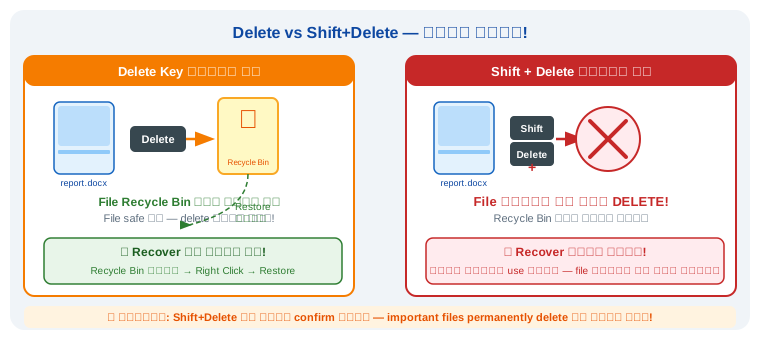
Delete = Recycle Bin (वापस आ सकती है) · Shift+Delete = हमेशा के लिए गई!
File Explorer — Windows का File Manager
File Explorer (पहले "My Computer" या "Windows Explorer") Windows का built-in file manager है। इसी से computer की सभी files, folders और drives manage होती हैं। Shortcut: Win+E
| हिस्सा | Part | क्या है और कैसे use करें |
|---|---|
| Address Bar | ऊपर का path bar — जैसे C:\Users\Tudu\Documents। Click करके directly path type कर सकते हैं। |
| Navigation Pane | बाईं तरफ — Quick Access, This PC, Network। Folders की tree structure दिखती है। |
| Quick Access | Recently opened folders — जल्दी access के लिए। Right Click → "Pin to Quick Access" से add करें। |
| This PC | C: Drive, D: Drive, USB drives — सब drives यहाँ। Storage कितनी बची है वो भी दिखता है। |
| Search Box | ऊपर दाईं तरफ — उस folder में search होती है। *.pdf = सभी PDFs। |
| Ribbon / Toolbar | Home, Share, View tabs — Copy, Paste, Delete, New Folder के buttons। |
| Status Bar | नीचे — selected files की count और size। |
- Extra Large Icons — Photos देखने के लिए — thumbnails बड़े
- List — बहुत सारे files एक साथ देखने के लिए
- Details — Name, Date, Size, Type — सबसे useful
- Tiles — Icons + file info — medium size
- Shortcut: Ctrl+Shift+1 to 6 — view change
- Name से sort: "Name" column पर click → A-Z या Z-A
- Date से sort: "Date modified" column → नई पहले
- Size से sort: "Size" column → बड़ी files पहले
- Type से sort: "Type" column → सभी PDFs एक जगह
- Right Click → "Sort by" → कोई भी option
| File Explorer Shortcut | काम |
|---|---|
| Win+E | File Explorer खोलना |
| Alt+← | Back — पिछले folder में जाना |
| Alt+→ | Forward — आगे जाना |
| Alt+↑ | Parent folder में जाना (Up one level) |
| F5 | Refresh — नई files दिखाना |
| Ctrl+N | नई File Explorer window खोलना |
| Alt+D | Address bar select — path type करें |
- Address bar में %userprofile% type करें → अपने User folder में जाएं (Documents, Downloads, Pictures)
- %temp% → Temp folder → select all → delete → storage खाली होगी
- Details view हमेशा use करें — file का size और date दिखता है, confusion नहीं होती
File Extensions — फ़ाइल के प्रकार
File के नाम के अंत में dot (.) के बाद जो अक्षर होते हैं — वो Extension है। इससे पता चलता है file किस type की है।
| Extension | File Type | खुलता है | उदाहरण |
|---|---|---|---|
| .jpg / .jpeg | Photo | Photos, Paint | family.jpg |
| .png | Image (Transparent) | Photos | logo.png |
| PDF Document | Adobe Reader, Browser | ebook.pdf | |
| .doc / .docx | Word Document | MS Word | letter.docx |
| .xls / .xlsx | Excel Spreadsheet | MS Excel | data.xlsx |
| .ppt / .pptx | PowerPoint | MS PowerPoint | slides.pptx |
| .txt | Plain Text | Notepad | notes.txt |
| .mp3 | Audio | VLC, Windows Media Player | song.mp3 |
| .mp4 | Video | VLC | video.mp4 |
| .zip / .rar | Compressed File | WinRAR | files.zip |
| .exe | Program / Setup | Windows | setup.exe |
- Extension दिख नहीं रही? File Explorer → View → Show → File name extensions ON
- .exe files अनजान जगह से download न करें — virus हो सकता है
WinRAR — Compress और Extract
बहुत सारी files को एक साथ भेजना हो या storage जगह बचानी हो, तो उन्हें compress करके एक छोटी सी .zip या .rar file बनाई जाती है। इसके लिए WinRAR नाम का program use होता है। नीचे इसका इस्तेमाल और steps देखें।
- Compress — कई files को एक .zip/.rar में बदलना
- Extract — .zip/.rar खोलकर original files निकालना
- Password — compressed file पर password लगाना
- Compress: Files select → Right Click → 'Add to archive' → OK
- तेज़: Right Click → 'Add to [filename].zip'
- Extract: .zip/.rar → Right Click → 'Extract Here'
- Password: 'Add to archive' → 'Set password' → OK
- .zip files Windows में बिना WinRAR के खुलती हैं — Right Click → 'Extract All'
- .rar files के लिए WinRAR ज़रूरी है
Screenshot कैसे लें
Screen पर जो कुछ भी दिख रहा है उसकी picture लेने को Screenshot कहते हैं — यह किसी error, जानकारी या study material को save करने के लिए बहुत काम आता है। नीचे table में screenshot लेने के सभी तरीके दिए गए हैं।
| तरीका | Shortcut | क्या होता है |
|---|---|---|
| PrtSc | PrtSc | पूरी screen Clipboard में। Paint में Ctrl+V → Save। |
| Win + PrtSc | Win+PrtSc | Auto save → Pictures → Screenshots folder में। |
| Alt + PrtSc | Alt+PrtSc | सिर्फ active window। |
| Snipping Tool | Win+Shift+S | कोई भी हिस्सा select करो — सबसे useful! |
- Win+PrtSc — automatically Pictures → Screenshots folder में save होती है
- Specific हिस्से के लिए: Win+Shift+S — सबसे useful!
Date & Time Setting
Computer में सही Date और Time set होना ज़रूरी है, वरना files की timing गलत record होती है और online काम में भी दिक्कत आती है। नीचे इसे set करने के steps दिए गए हैं।
- Taskbar में Date/Time पर Right Click करें → 'Adjust date/time'
- 'Set time automatically' OFF करें → 'Change' दबाएं
- Date और Time set करें → Change
- Time Zone: 'India Standard Time (UTC+5:30)' select करें
Win+R — Run Box Commands
Win+R दबाने पर 'Run' window खुलती है। Command type करके directly program, settings, या tools खोलें।
| Command | क्या खुलेगा |
|---|---|
| सिस्टम जानकारी | |
| winver | Windows version और Build number |
| msinfo32 | System Information — Processor, RAM, Motherboard |
| dxdiag | Graphics Card और Audio device की जानकारी |
| sysdm.cpl | System Properties — RAM, Processor देखना |
| Files और Programs खोलना | |
| winword | MS Word खोलें |
| excel | MS Excel खोलें |
| notepad | Notepad खोलें |
| calc | Calculator खोलें |
| mspaint | MS Paint खोलें |
| charmap | Character Map — special characters |
| osk | On-Screen Keyboard |
| Settings | |
| control | Control Panel खोलें |
| appwiz.cpl | Programs Uninstall करना |
| ncpa.cpl | Network — WiFi और LAN settings |
| timedate.cpl | Date & Time Settings |
| Maintenance | |
| taskmgr | Task Manager — programs और RAM/CPU usage |
| cleanmgr | Disk Cleanup — storage खाली करना |
| cmd | Command Prompt |
- Win+R सबसे तेज़ तरीका — Start Menu में ढूंढने की ज़रूरत नहीं
- taskmgr — computer slow हो तो खोलें, ज़्यादा RAM use करने वाले programs बंद करें
- cleanmgr — महीने में एक बार — temporary files delete, storage खाली
Control Panel — Windows का Settings Center
Control Panel Windows का वो जगह है जहाँ computer की सभी important settings मिलती हैं — Display, Sound, Printers, User Accounts, Network। खोलने के लिए: Win+R → control → Enter
| Setting | कहाँ मिलेगा | क्या करें |
|---|---|---|
| Display / Resolution | Right Click Desktop → Display Settings | Resolution 1920×1080 (Full HD) रखें — आँखों के लिए best |
| Sound / Volume | Control Panel → Sound। या Taskbar volume icon → Right Click | Default device set करें — Speaker या Headphone |
| Printer Add करना | Settings → Bluetooth & Devices → Printers & Scanners → Add | Driver install करें पहले, फिर Add a printer |
| Mouse Speed | Settings → Bluetooth & Devices → Mouse → Additional mouse settings | Pointer speed बढ़ाएं/घटाएं — Cyber Cafe में medium रखें |
| Power Settings | Control Panel → Power Options। या Win+X → Power Options | "Balanced" plan रखें। "High Performance" laptop battery जल्दी खत्म करता है |
| Language & Keyboard | Settings → Time & Language → Language | Hindi keyboard add करें — Win+Space से switch |
| Default Apps | Settings → Apps → Default Apps | Browser, PDF reader, Photo viewer — अपनी choice set करें |
| Storage Sense | Settings → System → Storage → Storage Sense | Auto-cleanup ON करें — Temp files अपने आप delete होती हैं |
- Scale 100% — Normal। छोटे text के लिए 125%
- Night Light ON करें — रात में आँखें कम थकती हैं (blue light कम)
- Multiple monitors: Win+P → Extend (दोनों screen अलग)
- Win+I — Windows Settings सीधे खुलता है
- Win+X — Power User Menu (Device Manager, Disk Management)
- ms-settings:display → Run में type → Display settings
- ms-settings:sound → Sound settings
- Win+X → Device Manager
- Yellow triangle = driver problem — Right Click → Update driver
- Unknown device = नया hardware — driver install करें
- Printer, Scanner driver problem यहाँ solve होती है
Internet क्या है?
Internet दुनिया भर के computers को जोड़ने वाला एक विशाल network है।
| Term | मतलब | Meaning |
|---|---|
| Browser | Internet पर websites खोलने का program। Chrome, Firefox, Edge। |
| Website | Internet पर address। google.com, youtube.com। |
| URL | पूरा address। जैसे https://www.google.com |
| HTTPS | Secure connection (lock icon)। HTTP = unsecured। |
| Search Engine | Information ढूंढना। Google, Bing। |
| WiFi | Wireless internet connection। |
| LAN | Cable से internet connection। |
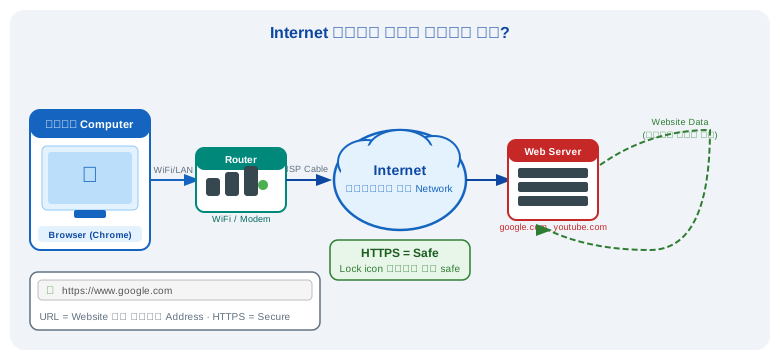
Internet कैसे काम करता है — आपका Computer → Router → Internet → Web Server → वापस आपके पास
- HTTPS वाली websites safe हैं — HTTP पर personal information न दें
- Browser history clear: Ctrl+Shift+Delete
- Incognito Mode: Ctrl+Shift+N — history save नहीं होती
Task Manager — Computer Manage करें
Computer अचानक slow हो जाए या कोई program hang हो जाए, तो Task Manager से पता चलता है कि कौन सा program ज़्यादा resources use कर रहा है और उसे बंद किया जा सकता है। नीचे इसे खोलने और use करने के steps दिए गए हैं।
- खोलें: Ctrl+Alt+Delete → Task Manager। या taskmgr
- 'Processes' tab — सभी programs और CPU/Memory use देखें
- Program hang? Select → 'End Task' दबाएं
- 'Performance' tab — CPU, RAM, Disk real-time graph
- 'Startup' tab — unnecessary programs disable करें — computer fast boot
- Computer slow? Task Manager → CPU/Memory 90%+ है तो programs बंद करें
- Startup tab में unnecessary programs disable करें — faster boot
Pen Drive Format और Safely Remove
Pen Drive use करते समय दो चीज़ें ध्यान रखनी ज़रूरी हैं — उसे साफ करके नए सिरे से तैयार करना यानी Format, और निकालने से पहले सही तरीके से बंद करना यानी Safely Remove, ताकि data corrupt न हो। नीचे दोनों के steps दिए गए हैं।
- Pen Drive लगाएं → Win+E खोलें
- Pen Drive पर Right Click → 'Format'
- FAT32 (छोटी files) या NTFS (बड़ी files) → Start
- Warning → OK → Format हो जाएगी (सब data delete)
- System Tray में Pen Drive icon → 'Eject [Drive]' → message आएगी → तब निकालें
- बिना safely remove के निकालने से files corrupt हो सकती हैं
Virus और Antivirus — Computer की सुरक्षा
Internet और Pen Drive से computer में Virus आने का खतरा हमेशा रहता है, जो files को नुकसान पहुंचा सकता है या data चुरा सकता है। इससे बचने के लिए Antivirus software ज़रूरी है। नीचे Virus के लक्षण, प्रकार और popular Antivirus programs दिए गए हैं।
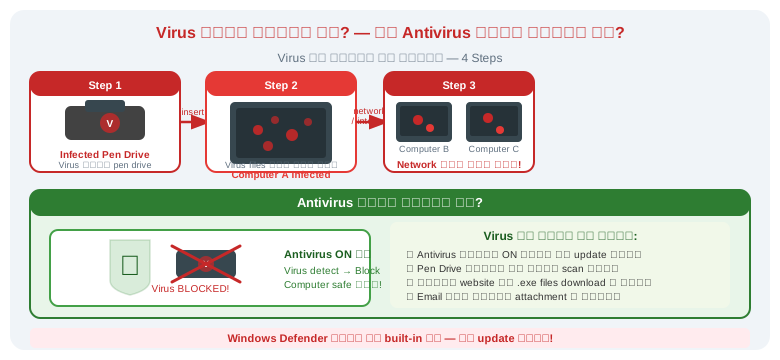
Virus कैसे pen drive से फैलता है और Antivirus कैसे बचाता है
| Virus का प्रकार | क्या करता है |
|---|---|
| Virus | Files corrupt करता है और खुद copy होकर फैलता है |
| Trojan Horse | Normal software जैसा दिखता है — install पर control चुरा लेता है |
| Spyware | Passwords और bank details चुराता है |
| Ransomware | Files lock करता है — unlock के लिए पैसे माँगता है |
| Adware | बार-बार popup ads दिखाता है |
| Worm | Network से एक computer से दूसरे में फैलता है |
Popular Antivirus
- Antivirus हमेशा ON रखें और update करते रहें
- अनजान website से .exe files download न करें
- Pen Drive लगाने से पहले scan करें
- Email में अनजान attachment न खोलें
- Windows Defender पहले से है — extra antivirus की ज़रूरत नहीं, बस update रखें
- एक computer पर दो antivirus न लगाएं — conflict होता है, computer slow होता है
Practical — Windows Security Setup करें
यह exercise एक नए computer या Cyber Cafe PC पर complete security setup करने की है — User Account, Password, Windows Update और Backup तक।
| Security Problem | कारण | Solution |
|---|---|---|
| Computer unlock नहीं हो रहा | Password भूल गए | Startup पर F8 → Safe Mode → Admin account से reset |
| Windows Update fail हो रहा | Disk space कम है | Disk Cleanup (cleanmgr) → फिर Update |
| Defender off हो गया | Third-party antivirus conflict | Extra antivirus uninstall करें → Defender ON होगा |
| Account में login नहीं हो पा रहा | Password गलत या Caps Lock ON | Caps Lock check करें, Password hint देखें |
| Files backup नहीं हो रही | Drive full या permission नहीं | Admin account से backup करें |